Site tutorials · Tutorial 26 of 27
Set up and run a tracker group
Support a group of people as they track: ask for a group, invite each person with a private link, set up their protocols, and bring in advocates to help.
Ask for a group
- 1Under Quick actions on your dashboard, press Group tracking
- 2Group tracking is for someone who supports a group of people using the tracker
- 3Who sees what: you see the names you give people; our team sees codes and numbers only
- 4Ask for a group: its name, what it is for — please don't include anyone's name — and roughly how many people
- 5Confirm everyone in it has agreed to take part
- 6Press Send request. Our team reviews it, and this page shows your group once it's approved
Watch
Request a group
The request form, filled in.
Add a member
- 1Once your group is approved, Group tracking opens on it
- 2Names are encrypted in your browser. Type your group's names passphrase — we never see it
- 3On a device that's yours alone, it can remember it. Press Unlock
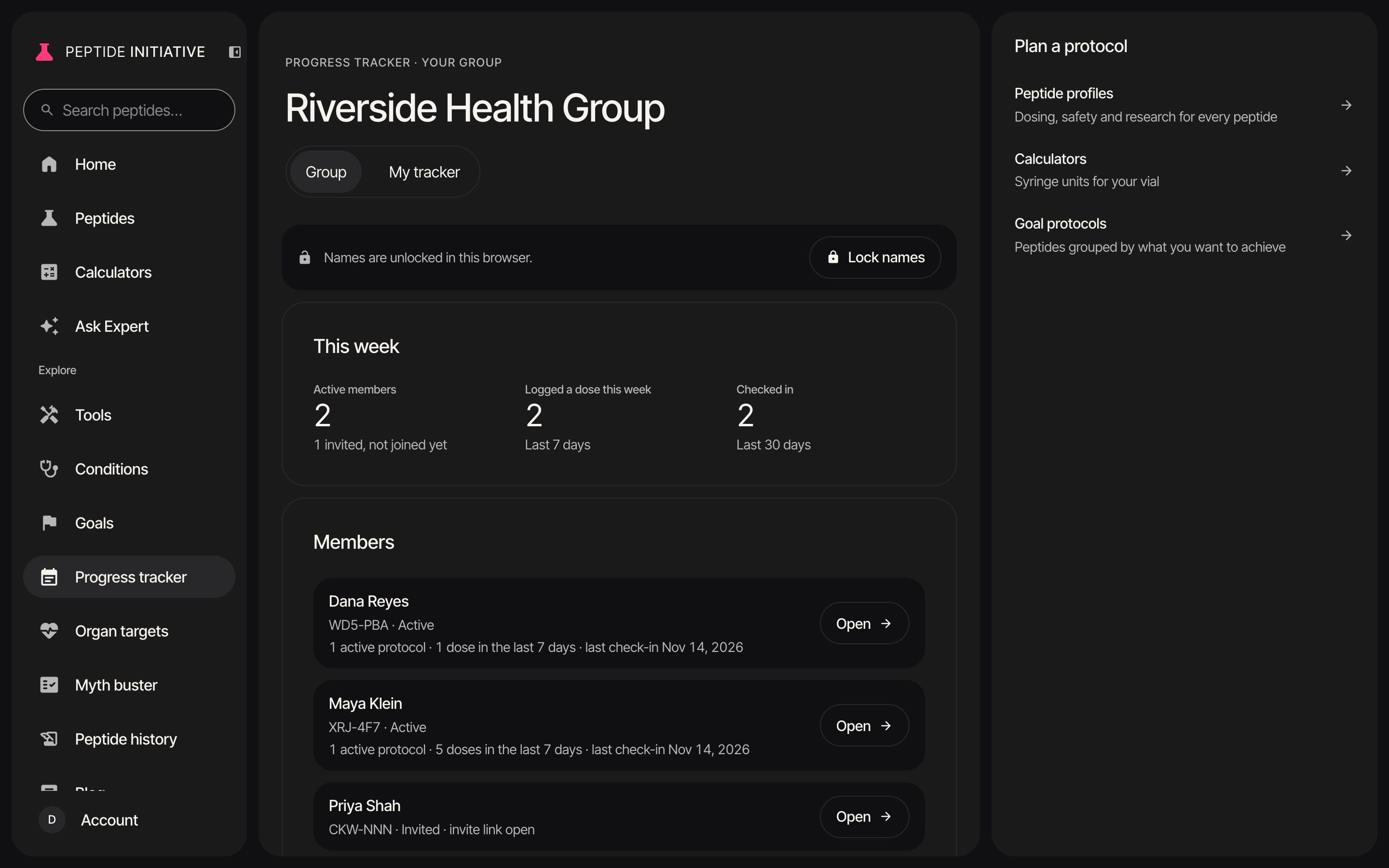
- 4This week: who's active, who logged a dose, who checked in
- 5Members: each person's protocols, doses this week and last check-in
- 6To add someone, scroll to Add a member. Her name is optional — leave it empty and she shows by her code
- 7Press Add member. She gets a code and a private invite link
- 8Copy the link and send it to her yourself — by text or email
- 9It's shown only now, works once, and expires in 30 days. You can issue a new one from her page
Watch
Add a member
Unlock the names, add a member, copy her link.
A member's page
- 1Press Open beside a member
- 2Her page: her code, when she joined, and when she agreed to your waiver
- 3Her protocols, with the note you left on each. Add or edit a note — she sees it on her dashboard and in her calendar
- 4How she's doing: doses logged against doses due, recent doses and check-ins
- 5You set up her protocols for her. Press Set up a protocol
- 6Choose a peptide — its usual dose and schedule fill in
- 7Check the dose, how often, the start date and length, and a reminder time if you like
- 8Save protocol puts it on her tracker and emails her that it's ready — without any details
Watch
A member's page
Notes, how she's doing, and the protocol form.
Advocates and history
- 1Advocates help you run the group
- 2They add members, see their tracking, leave notes and set up protocols. Only you remove people or change the waiver
- 3To add one: her name and her email address. Add advocate emails her a link that works only for that address
- 4Everyone who joins agrees to your group's waiver. A standard one is there to edit
- 5History: everything you and your advocates do, and when. Press Open the history
- 6Newest first. Lines can't be changed or deleted, and only you can see them
- 7Show one advocate's actions, or one member's
Watch
Advocates, waiver, history
Adding an advocate, the waiver, and the group's history.
Remove a member
- 1At the foot of a member's page: her place in the group
- 2Remove from group: your group stops seeing her tracking. Her own tracker is kept — everything she logged stays hers
- 3Keep her in the group changes nothing
- 4You can't delete a member's account — only she can
- 5Remove and ask her takes her out of the group and asks whether she wants her account deleted
- 6She chooses: keep using the tracker on her own, or delete her account
Watch
Remove a member
Both ways out of the group, each asking first.
Good to know
- One group per account. The account that asks for the group is its admin.
- Lost the names passphrase? You can reset it, which erases every saved name. Codes, members and everything they track stay as they are.
- Every edit to the waiver is a new version, and each member keeps the version she agreed to.
- Opening a member's record is recorded in the history, as is everything else staff do.
- Your own tracker is still yours: My tracker at the top switches between the group and your own dashboard.