Site tutorials · Tutorial 25 of 27
Log doses, check in, and plan ahead
Your dashboard opens on what's due today. Log each dose, check in on how it's going, and follow your schedule here or in your own calendar.
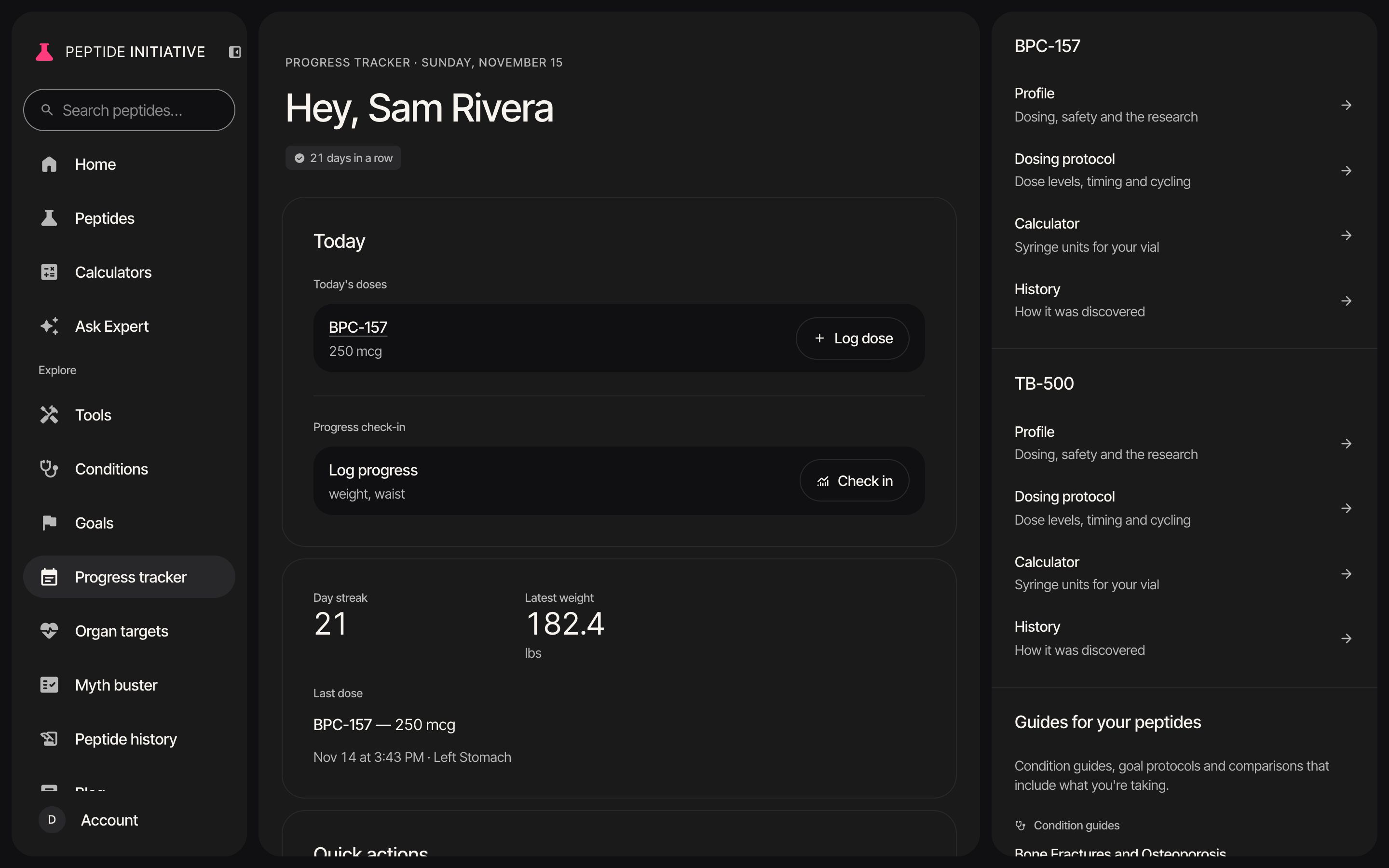
Log a dose
- 1Your dashboard opens on today: every dose that's due
- 2Press Log dose beside it
- 3Quick Log. The peptide and its dose come from your protocol
- 4Choose where you injected, if you want it recorded — sites you used recently are marked and moved to the end
- 5Press Log Dose
- 6Back on your dashboard, today's dose reads Done. Logged one by mistake? Its menu removes it
- 7Your streak, your latest weight and your last dose sit underneath
Watch
Log a dose
Today's BPC-157 dose, logged with its injection site.
The Guided Flow
- 1Log Dose has two ways in. Guided Flow walks you through the injection
- 2Choose the peptide. Your protocol's dose, your last dose and the next one due are shown — press Use This Dose
- 3Then a calculator for your vial — or Skip Calculator if you know your units
- 4What's in the vial, the water you mixed in, and how much to draw in syringe units. Press Submit Dose Amount
- 5Where to inject. Sites you used in the last two days are left out. Press a site for its injection instructions, then Continue
- 6A 30-minute monitoring timer. Logging after the fact? Skip the timer
- 7A short check on how the injection went — tap an answer to move on. An answer such as Hard to breathe stops with emergency guidance and Call 911
- 8Dose logged. It's on your dashboard and in your calendar
Watch
The guided flow
Dose, calculator, site, timer and the post-injection check.
Check in
- 1On a check-in day, Today shows Check in
- 2Step 1: the measurements you track. Not sure how? Each one shows how to measure it
- 3Step 2: how you're feeling — energy, sleep and mood, 1 to 10
- 4Step 3: check it over, then press Save Progress
- 5Your latest weight is on the dashboard, and today's check-in reads Done
Watch
Check in
Weight and waist, three ratings, saved.
Your calendar
- 1Further down your dashboard: the calendar — doses scheduled, doses logged, and check-in days, with a key
- 2Press a day for its details: what you logged, what's still scheduled, and a link to log it from there
- 3Week shows one row a day: completed against scheduled, and when progress is due
- 4The arrows move through the weeks — your doses are planned 90 days ahead
Watch
The calendar
Month, a day's details, and the week.
Your calendar app
- 1Under the calendar, press More
- 2Calendar Subscription: one press subscribes — the button matches your device, and the other apps sit beside it
- 3Each dose arrives with two alerts: 15 minutes before, and at dose time
- 4Or show the link itself and copy it into any calendar app — the steps for each are underneath
- 5The link opens your schedule without a sign-in, so keep it to yourself
- 6If it gets out, Reset link… makes a new one and stops the old one. It asks first
Watch
Calendar subscription
Subscribe, copy the link, and where to reset it.
Charts and history
- 1Press More, then Analytics
- 2Dose compliance: the doses you logged against the doses that were due
- 3Narrow the charts to one peptide, and to one month
- 4Pick which charts to show — Weight Progress charts your check-in weights
- 5Body Composition History: every check-in, and each dose with its date, time, amount and site
Watch
Charts and history
Compliance, the weight chart, and the dosing history.
Good to know
- A dose logged today can be removed from the dashboard; it asks first.
- Check-ins are kept one per day. A second check-in on the same day is merged into the first.
- After you reset your calendar link, the old calendar keeps the events it already has but gets nothing new. Remove it and subscribe again with the new link.
- Progress photos — upload, align, compare and export — are under More, then Progress Photos.