Site tutorials · Tutorial 11 of 27
Collect statements and export references
Save the statements you need as you read. Saved keeps each one with its section and sources, ready to copy or download as a reference list.
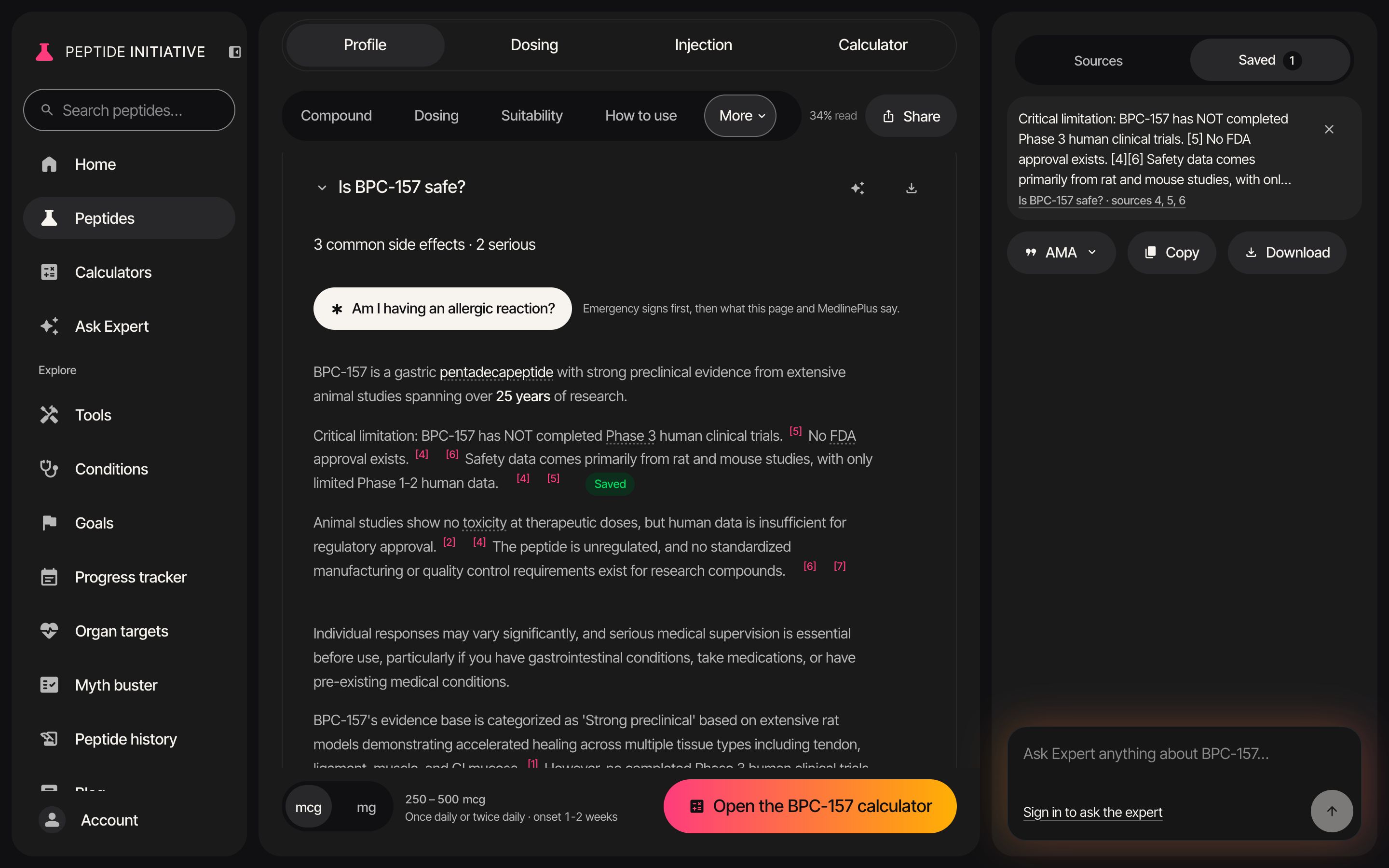
Save citations as you read
- 1A statement with sources ends in a Save citation button — on a computer, rest your pointer on the statement to see it
- 2Press Save citation to keep the statement and its sources
- 3The button turns green and reads Saved. Save as many as you like
- 4Press Saved at the top of the Sources panel — the number counts your saved statements. On a phone, Saved sits in the bar at the bottom of the page
- 5Each statement keeps its section and its source numbers
- 6× removes a statement. Changed your mind? Undo puts it back — you have a few seconds
- 7Press the line under a saved statement to go back to it on the page
Watch
Saving statements
Save citation keeps a statement and its sources under Saved.
Export the references
- 1Open Saved — your saved statements, ready to export. On a phone it is in the bar at the bottom of the page
- 2Pick a reference style: AMA, APA 7, Vancouver, Markdown, BibTeX, RIS or CSV
- 3Copy puts the statements and their full references on your clipboard
- 4Download saves the same thing as a file, named after the peptide
- 5The line underneath says what was copied or saved
Watch
Exporting references
Seven reference formats, copied or downloaded.
Good to know
- No account needed. Each profile keeps its own saved citations in this browser; if the browser blocks storage, the panel says so and they last until you leave the page.
- Under Is this right for me?, a Best for row saves from its … menu: Save citation.
- A source that isn't on PubMed is cited as the page lists it — the line under the buttons says when that happens.