Site tutorials · Tutorial 7 of 27
Find a peptide
The Peptides page lists every profile by category with one filter over all of them — and search reaches any peptide from any page.
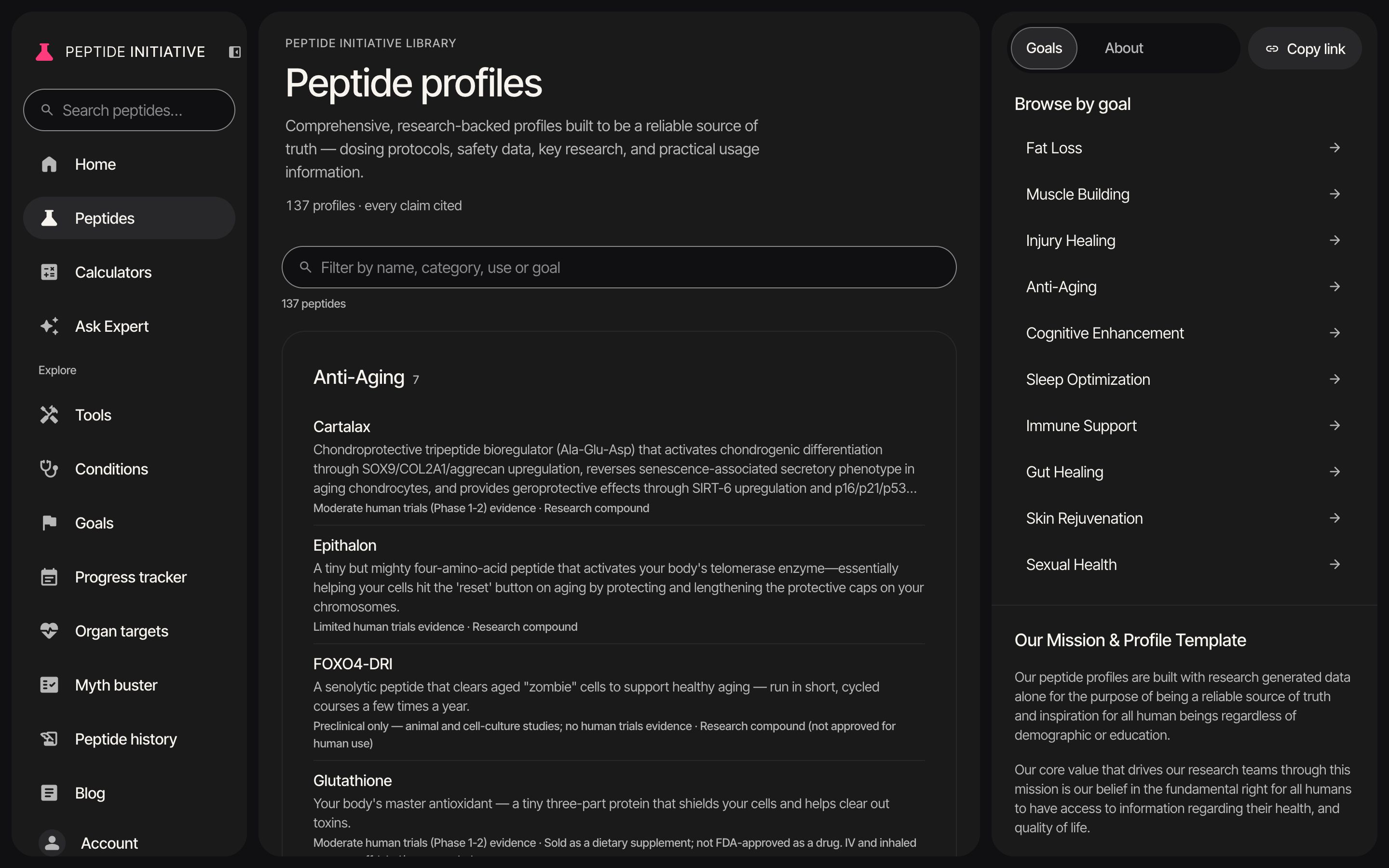
Filter the library
- 1Peptides in the sidebar — or in the tab bar on a phone — opens the library: every profile, grouped by category
- 2Type in the filter — a name, a category, a use or a goal
- 3The count under the field says how many peptides match
- 4Each category shows how many of its peptides match
- 5Each row: the name, what it is, its evidence level and its status
- 6Press a peptide to open its profile
Watch
Filtering the library
Typing tendon narrows the library to the peptides that mention it.
Goals, about, and the link
- 1Goals in the section bar jumps to Browse by goal — on a computer it sits beside the list
- 2Ten goals, each with its own page. Press a goal to open its page
- 3About explains the library's mission and lists the five questions every profile answers
- 4Copy link copies the library's address — paste it into any message. On a phone, the share button opens your share sheet with the link
Watch
Goals and about
Browse by goal, the five questions, and the library's link.
Search from any page
- 1You can search from any peptide page
- 2Click Search peptides… at the top of the sidebar — on a phone, press the search button at the top
- 3Type a peptide name or a category
- 4Matches show as you type, each with its category
- 5Press one to open it
Watch
Search
From BPC-157's profile to TB-500's in a few letters.
Good to know
- On the Peptides page itself, every search box types into the filter.
- The ✕ in the filter clears it. On a computer, Esc clears it too, and Return opens the first match.
- The filter writes your words into the page's address — a link ending in ?q=tendon opens with the filter already filled in.